
How to Make Pattern in AI: A Step-by-Step Guide
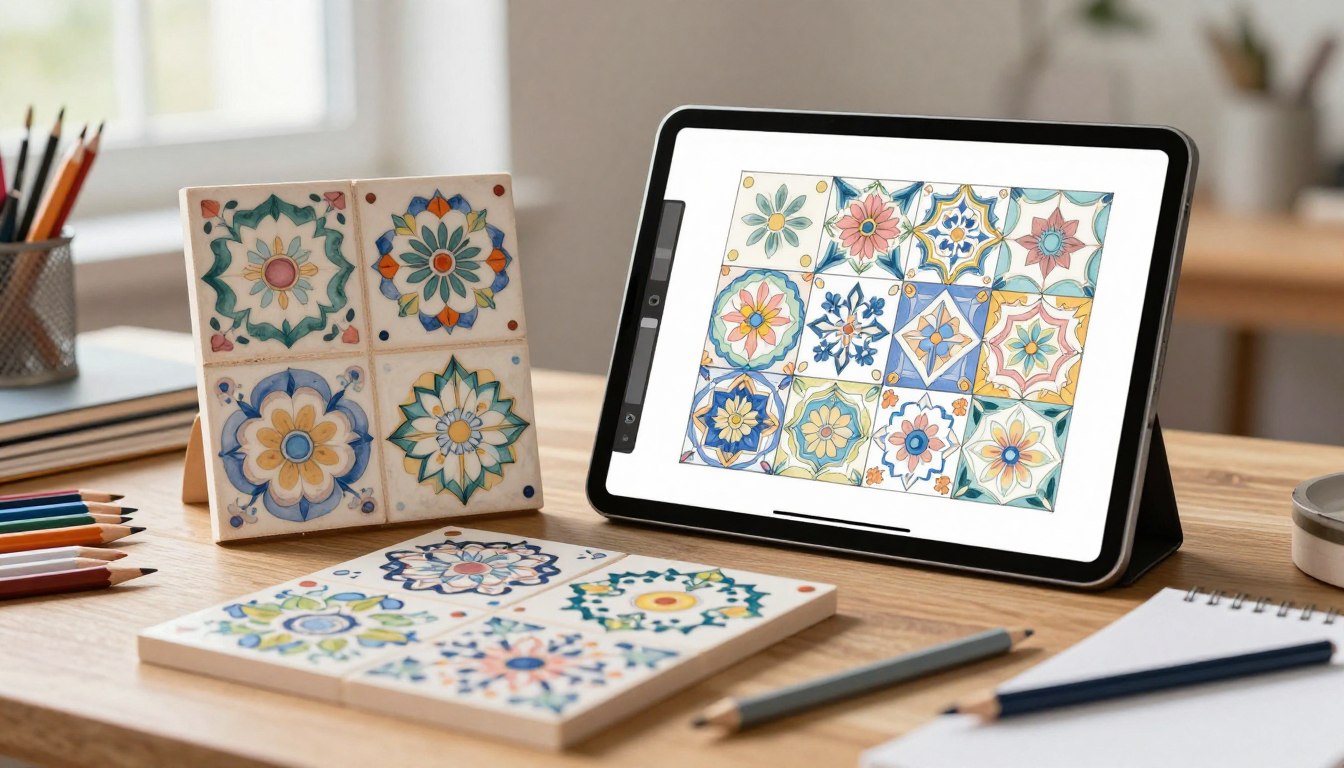
A repeating design can start with a hand-drawn motif, existing artwork, or an AI-generated draft. A tile is the bounded artwork area that repeats edge to edge to form a continuous design. An AI pattern generator can suggest a starting point, while Illustrator lets you build and check the repeat as vector artwork.
A seamless-looking preview still needs a real repeat test. This guide helps you choose a style, prepare a document, and make a repeat without wasting time on avoidable fixes. For a clean repeat, the artwork crossing one tile edge must meet its matching copy at the opposite edge.
Key Takeaways
- Start with a simple motif or draft.
- Inspect copies around every tile edge.
- Save and test a pattern swatch.
- Choose vector or AI tools for the work needed.
How to Make Pattern in AI With Adobe Illustrator
In Illustrator, select the motif or grouped artwork you want repeated, then choose Object > Pattern > Make. This opens Pattern Editing mode, where the live preview shows nearby copies. That preview helps you spot edge problems before saving the pattern swatch.
Judge the neighboring copies, not only the central tile. Pattern Options lets you choose Grid, brick, or hex arrangements, then adjust tile width, height, spacing, and overlap. The overlap controls decide which repeated objects sit on top when artwork crosses paths.
Check how the neighboring copies meet before trusting the center tile. Overlap settings can change which motif appears in front.
Prepare a motif and choose the artwork
Draw a motif with the Pen, Pencil, Shapes, or Blob Brush tool, or place existing artwork in the document. Use a few clear shapes for a first pattern. Group related objects when you want them to move and repeat together.
A small set of contrasting colors makes spacing easier to judge. Keep extra objects outside the intended design out of your selection, since Illustrator repeats every selected object. You can refine the artwork later from Pattern Editing mode.
Build and save the repeat in Pattern Editing mode
- Prepare and select the artwork you want repeated.
- Choose Object > Pattern > Make to open Pattern Editing mode.
- Adjust the tile type, width, height, spacing, overlap, and preview copies.
- Click Done, then apply the new pattern swatch as a fill or stroke.
The preview includes artwork crossing the tile boundary and its matching copies. Use it to inspect the full grid, not just the motif you began with. Pattern Make’s neighboring repeats make this check visible while you edit.
After clicking Done, Illustrator adds the pattern swatch to the Swatches panel. Select an object and apply the swatch as a fill, or use it as a stroke. Inspect the faded neighboring copies at every tile edge before clicking Done.
How Do You Create a Seamless Pattern in Illustrator?
A repeat is seamless only when every motif cut off at one edge continues in the matching position at the opposite edge. In Illustrator, a rectangular artboard can serve as the tile; a square is not required. Matching opposite edges matters more than the tile’s shape.
Repeat motifs across the tile edges
In a manual artboard workflow, duplicate any artwork that crosses an edge, keep the original in place, and move the copy by exactly one tile width or height. A motif crossing the left edge needs its matching copy at the right; top and bottom edges work the same way.
A clipping mask can hide artwork beyond the tile, but hidden objects may leave unwanted white space in a swatch. Inspect the boundary and use a crop workflow that defines the tile cleanly. Illustrator’s live Pattern Tool preview can show grid, brick, and hex layouts as you compare the repeat.
Test the swatch and fix visible seams
Create a swatch after arranging the artwork, then test it at a larger size. Scan the joins in both directions; a tiny gap can become obvious when the pattern covers a wide area. Illustrator’s 2-pixel/point minimum tile size is an advanced limitation, not a beginner target.
For a tile smaller than that minimum, an Illustrator community workaround is to build the pattern at 200%, scale it to 50%, and return it to the Swatches panel. Most beginners should work at the intended size instead. Use this checklist after making the swatch:
- Fill a larger shape with the swatch.
- Scan both horizontal and vertical joins.
- Look for gaps or doubled motifs.
- Revise the artwork and regenerate the swatch.
After any manual edit, generate a fresh swatch and test it on a larger shape rather than trusting the tile alone.
How Do You Recolor and Scale a Pattern Fill?
To enlarge or rotate only the design inside a shape, select the shape and open Object > Transform > Scale or Rotate. Choose Transform Patterns and deselect Transform Objects. This changes the pattern inside the object without resizing the object itself.

In the dialog box, enter a scale or rotation amount and preview the result. Transform Patterns moves or changes the pattern fill; Transform Objects changes the shape’s dimensions or angle. If both options are active, the object and its fill can change together.
To change the design’s colors or spacing, double-click its pattern swatch in the Swatches panel. Pattern Editing mode reopens, letting you edit the artwork, spacing, or colors, then save the revision. This edits the saved pattern rather than just its placement in one shape.
For small adjustments, test the new scale or color on a duplicate object first. A dense pattern may become hard to read when reduced, while rotating a fill can change the direction of stripes or repeated motifs. Check the object’s outline after transforming, since the pattern should change while the shape stays put.
How Do You Repeat a Shape Along a Path?
A Pattern Brush repeats selected artwork along a path, making it useful for borders, chains, and other linear designs. Choose this when the design should follow a line rather than fill a tile-shaped area. The brush follows the path you draw.
Create one motif first, then apply it to a path with these steps:
- Select the artwork you want the brush to repeat.
- Open Window > Brushes, choose New Brush, then select Pattern Brush.
- Set the Pattern Brush options and confirm the brush.
- Draw or select a path and apply the brush with the Paintbrush Tool.
The options can stretch the motif to fit, add space to fit, or flip it horizontally or vertically. You can also choose to approximate the path, which changes how the repeated artwork handles bends. Try the settings on a short test line before applying the brush to a detailed illustration.
Choose Object > Expand Appearance to turn a pattern-brush stroke into editable fill objects. That is useful for detailed changes to individual pieces, but it replaces the live brush stroke with separate objects. Save a copy before choosing Expand Appearance, because the expanded stroke becomes separate editable objects.
Which AI Pattern Generator Fits Your Workflow?
For editable vector control, choose Illustrator; for quick prompt-led concepts, try an AI pattern generator such as PatternedAI. Match the tool to the work: vector editing offers direct control, while generators can speed up early design ideas. A free tier is useful for trials, but export limits can affect finished work.
Choose a generator for quick concepts
PatternedAI offers text-prompt generation and PNG or JPG exports up to 2K. Its free tier lets you try the AI pattern tools without a charge, but that does not mean paid features are included. Pattern Weaver lists seam fixing and product mockup previews, useful when a repeat needs repair or a product view.
Midjourney supports seamless generation with the --tile flag. Canva’s AI image generator can help with quick drafts, visual references, and testing a creative direction. Brand control and targeted edits can limit that workflow. Listed AI tool prices in 2026 range from free tiers to paid plans, so compare the limits with your task.
Choose vector software for direct control
Adobe Firefly integrates with Illustrator and Photoshop for generating and editing patterns within the Adobe workflow. Illustrator’s U.S. list pricing in 2026 is $22.99 per month on an annual plan billed monthly, $263.88 per year prepaid, or $34.49 month to month. Sales tax is extra.
PatternedAI lists plans from Free to $15 per month, and Pattern Weaver lists plans from Free to $99.99 per month. Midjourney lists plans from $10 to $60 per month. Free AI pattern generators and online pattern makers are handy for a first experiment, but finished design work may need higher-resolution exports and more editing control.
| Tool | Listed price | Useful workflow feature |
|---|---|---|
| Adobe Illustrator | $22.99/month annual billed monthly; $263.88/year prepaid; $34.49/month month-to-month | Vector pattern editing |
| PatternedAI | Free to $15/month | Text prompts; exports up to 2K |
| Pattern Weaver | Free to $99.99/month | Seam fixing; mockup previews |
| Midjourney | $10-$60/month | Seamless generation with –tile |
Check the plan’s export and editing limits before building a production workflow around a free tier.
How Do You Turn an Image Into a Repeat?
An existing image can become a repeat when its edges are repaired and its motifs are arranged to tile cleanly. A pattern generator from an image works best when the source has enough detail for the intended size. Start with a clear image, not a tiny or blurry thumbnail.
Free access alone does not confirm export resolution or commercial-use terms. A free online pattern maker may offer useful editing, but check what its plan allows before using a design for products. The source artwork’s detail also sets how much cleanup it may need.
For textile printing, PatternedAI lets users upload a square PNG or JPG to fix seams, recolor, restyle, edit, vectorize, upscale, or preview on products. These options can speed up image-based experiments, especially when a motif is close to a usable repeat but its edge needs repair.
Illustrator offers a hands-on route: Image Trace converts raster artwork into vector paths. Simple artwork may trace cleanly, while complex images often need cleanup before use. Inspect small details after vectorizing, because rough tracing can add cleanup work rather than remove it.
Can AI Create a Sewable Sewing Pattern?
A free AI-generated sewing pattern is not automatically ready to print, cut, and sew. AI may produce a rough draft, not a verified pattern. Check the construction before cutting; drafts may omit seam allowance, notches, grainlines, or reliable size grading.
A PDF can also print at the wrong scale. Confirm its scale before using the pattern, since even a small print-size error can change how pieces fit together. Treat a free AI sewing pattern generator as a starting point, not a substitute for fit and scale checks.
Use this five-point check before cutting your intended fabric:
- Verify the seam allowance on each piece.
- Check that the notches are present and clear.
- Confirm the grainlines and their direction.
- Walk the seams by matching their edges and lengths.
- Sew a toile in scrap fabric and check the fit.
A toile is a test garment made from inexpensive fabric. It can reveal fit problems before they affect the fabric you want to keep. Test the toile and confirm the printed scale before cutting into the fabric you intend to keep.
Which Export File Works for Print or Products?
Choose the export by how the design will be used, not just by which file type is easiest to download. Raster files suit pixel-based artwork; vector files preserve scalable paths. Print requirements should guide the format and color setup. Ask the printer’s specifications to determine the final setup.
PatternedAI lists PNG and JPG exports up to 300 DPI for Standard and Pro plans. Its Business plan includes SVG and Adobe Illustrator (.ai) exports with color-separated layers, plus individual color TIFF files in a zipped folder.
| Plan or tool | Available formats | Stated export detail |
|---|---|---|
| PatternedAI Standard and Pro | PNG, JPG | Up to 300 DPI |
| PatternedAI Business | SVG, Adobe Illustrator (.ai), TIFF | Color-separated layers; individual color TIFF files in a ZIP folder |
| Pattern Weaver | PNG, JPG, WEBP, TIFF with CMYK, PDF | Exports up to 8K |
A 12 x 12 inch artboard at 300 dpi in CMYK is one Illustrator setup example, not a universal print requirement. PatternedAI says its patterns are royalty-free for commercial use on unlimited products. Selected text-generated designs on Standard accounts may appear in its public gallery.
Choose the file and color setup for the actual production method. A Standard text-generated design may also be visible in PatternedAI’s public gallery.
Before sharing a text-generated Standard design, check whether its public-gallery visibility is acceptable.
Conclusion
A dependable repeat comes from checking how the design behaves beyond its tile. Test edge continuity before calling a pattern seamless, then choose a tool and export based on the editing control and production detail you need.

For a hands-on start, make a simple motif in Illustrator, save it as a swatch, and test it on a larger shape. That quick test shows whether the colors, spacing, and joins hold up at the size you plan to use. Make one small motif, test the swatch at the size you plan to use, and refine it until the joins disappear.
FAQ
What is pattern design?
Pattern design is arranging motifs or artwork into a composition that can repeat. The tile is the bounded area containing the artwork, and its edges must join continuously when repeated. A successful repeat can use a simple motif, a set of shapes, or more detailed artwork. Testing the tiled result helps reveal gaps or overlaps that are easy to miss in one tile.
Can AI create patterns?
Yes, AI tools can generate or edit pattern concepts from prompts or existing images. They can help you explore colors and styles quickly, but a preview does not prove every edge joins cleanly. Test the repeat in the intended size, then check export resolution, format, and usage terms before preparing it for a product or print job.
How to build a pattern in Illustrator?
Select your artwork in Illustrator and choose Object > Pattern > Make. Adjust the tile and preview in Pattern Editing mode, checking how the neighboring copies meet at each edge. Click Done to save the design as a pattern swatch. Apply that swatch to an object as a fill, then inspect the repeat on a larger shape.
How do I add a pattern to AI?
In Adobe Illustrator, select an object and click a pattern swatch in the Swatches panel to apply it as a fill. The shape keeps its outline while the repeating design appears inside it. For artwork that should follow a line instead, use a Pattern Brush. That path-based option repeats the selected design along the stroke.
How can I create my own pattern?
Start with an original motif, arrange it in a tile, and check how artwork at each edge meets its matching copy. You can draw the motif in Illustrator or use existing artwork as a starting point. Save the repeat as a swatch and test it on a larger shape. That test exposes joins and spacing issues before you use the design elsewhere.
Which app is best for pattern design?
Illustrator is a strong choice for editable vector control. PatternedAI suits prompt-led drafts, Pattern Weaver offers seam fixing and mockup previews, and Midjourney supports tiled generation with the –tile flag. Choose based on whether you need direct artwork edits, fast concept generation, repeat repair, or a tiled AI image. Check export limits before committing to a workflow.
How to make a pattern for beginners?
Start with one simple motif and select it in Illustrator. Choose Object > Pattern > Make, adjust the live preview, and click Done to save a swatch. Apply the swatch to a larger shape and inspect the joins around the repeat. A small, clear design makes spacing problems easier to spot than a crowded first attempt.
Is there an AI tool that can create sewing patterns?
Yes, AI can produce a rough sewing-pattern draft, but it is not automatically ready to cut and sew. Check seam allowance, notches, grainlines, seam fit, and the printed PDF scale. Make a toile in scrap fabric to test the fit before cutting your intended fabric. Confirm the PDF’s scale with its print test before assembling pieces.


 By
By
 By
By